Add your AI assistant to any website with a customizable widget that supports voice calls, text chat, or both.
Overview
The Web Widget allows website visitors to interact with your AI assistant directly through:
- Voice conversations: Real-time voice calls in the browser
- Text chat: Messaging interface for text-based interactions
- Hybrid mode: Seamless switching between voice and chat
- Navigate to your assistant’s edit page
- Click the “Web widget” button (yellow/warning color)
- The widget configuration panel opens with live preview
Web Widget is a premium feature. Ensure your plan includes web widget access before configuration.
Voice & Chat (Recommended)
Users can seamlessly switch between voice and text during conversations.
Best for:
- Maximum flexibility for users
- Accessibility (voice for mobile, chat for quiet environments)
- Complex interactions requiring both modes
Chat Only
Text-based messaging interface only.
Best for:
- Customer support and FAQs
- Environments where voice isn’t appropriate
- Lead capture and qualification forms
Voice Only
Real-time voice conversations only.
Best for:
- Phone-like experience on website
- Voice-first use cases
- Hands-free interactions
Configuration Options
General Tab
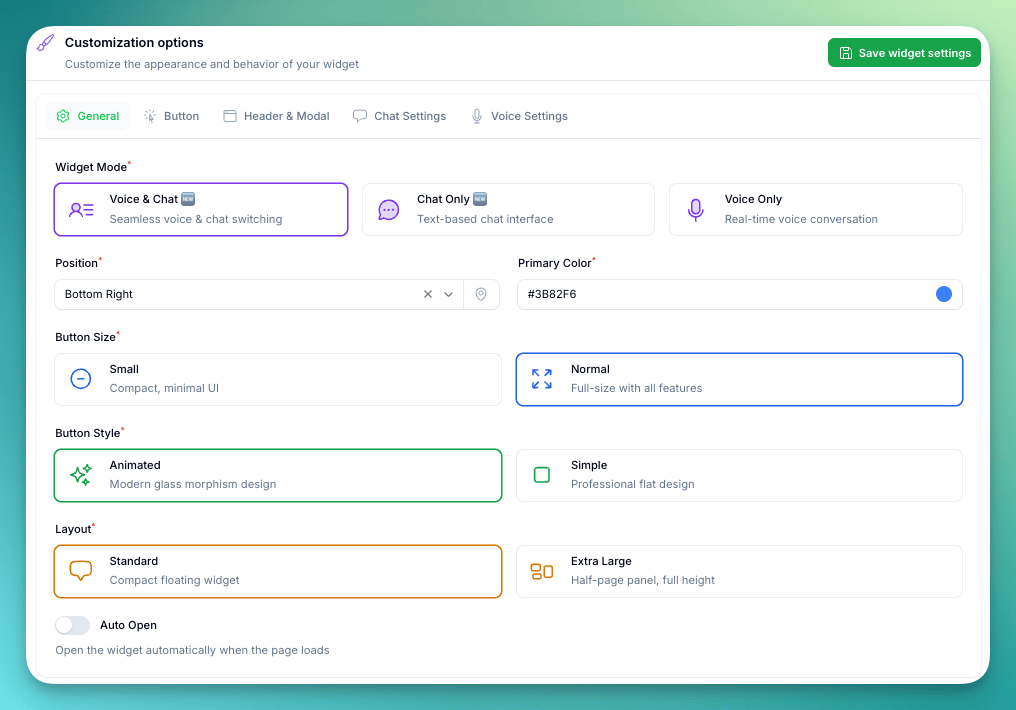
Widget Mode: Voice, Chat, or Voice & Chat
Widget Size: Choose between standard or extra large layout
- Standard: Compact floating widget suitable for most use cases
- Extra Large: Half-screen panel on desktop, full-screen on mobile — ideal for detailed conversations
Position: Choose from 8 positions (bottom-right, bottom-left, bottom-center, middle-right, middle-left, top-right, top-left, top-center)
Primary Color: Brand color for buttons and accents
Toggle Button Size: Small or Normal
Toggle Button Style: Animated (glass morphism) or Simple (flat design)
Auto-Open on Page Load: When enabled, the widget automatically expands when the page loads — no click required from the visitor.
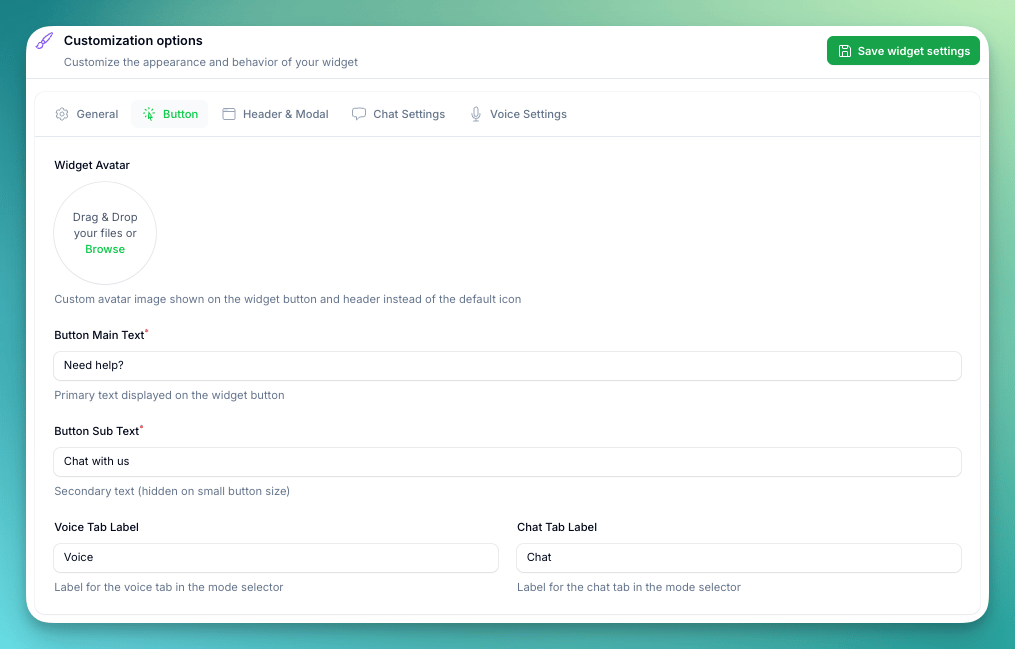
Custom Avatar: Upload your own avatar image to replace the default widget icon. Appears on the toggle button and in the chat header. Max file size: 512KB, 1:1 aspect ratio (square).
Button Main Text (default: “Need help?”) — primary text on the widget button
Button Sub Text (default: “Chat with us”) — secondary text, hidden when using the small button size
Tab Labels (Voice & Chat mode only):
- Voice Tab Label (default: “Voice”) — rename to match your brand language (e.g., “Call Us”, “Speak”)
- Chat Tab Label (default: “Chat”) — rename to match your brand language (e.g., “Message”, “Text”)
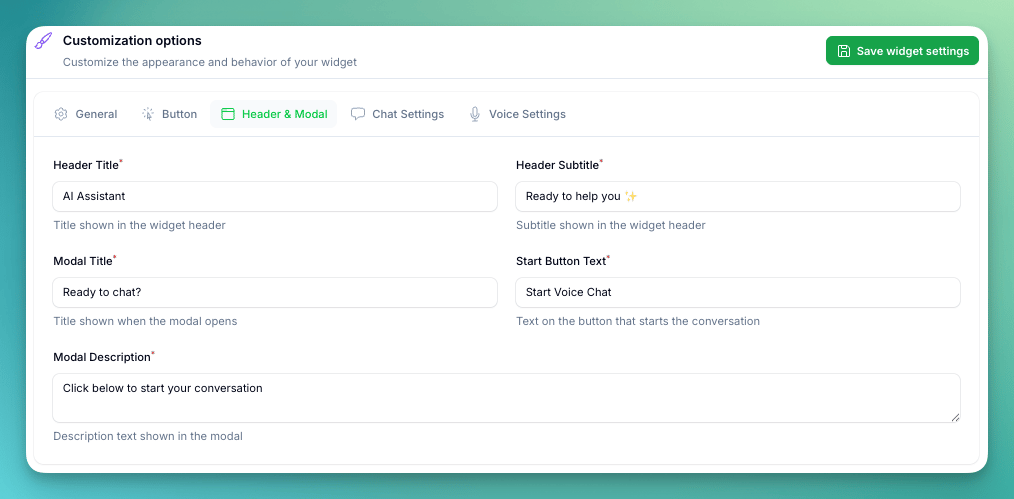
Header Title (default: “AI Assistant”)
Header Subtitle (default: “Ready to help you ✨”)
Modal Title (default: “Ready to chat?”)
Start Button Text (default: “Start Voice Chat”)
Modal Description (default: “Click below to start your conversation”)
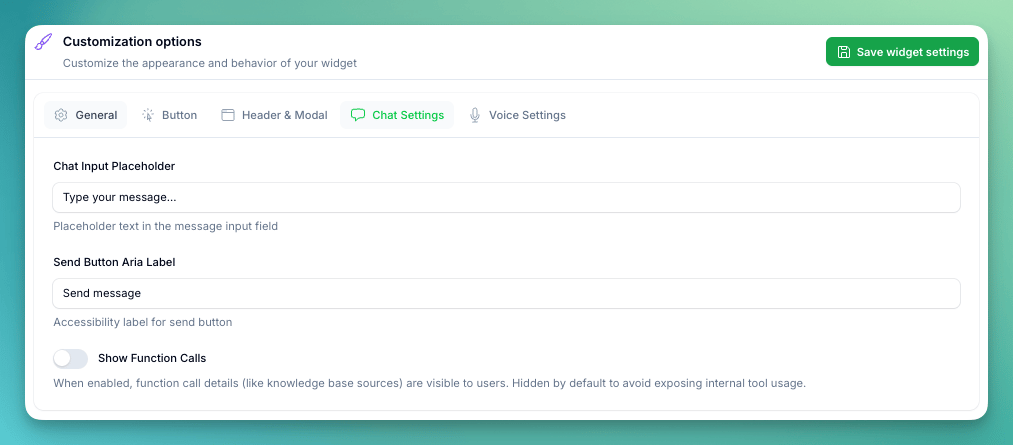
Chat Settings Tab
This tab is only visible when the widget mode includes chat (Chat Only or Voice & Chat).
Clickable Links in Chat
The chat widget supports markdown formatting, so your AI assistant can send clickable links, bold text, lists, and more.
To include clickable URLs in chat messages, use markdown link format in your assistant’s prompt or initial message:
Check out our [latest offers](https://example.com/offers) or visit our [help center](https://example.com/help).
Add an instruction to your assistant’s prompt like: “When sharing links or URLs, always format them as clickable markdown links: [link text](url)” — this ensures the AI consistently outputs clickable links instead of plain text URLs.
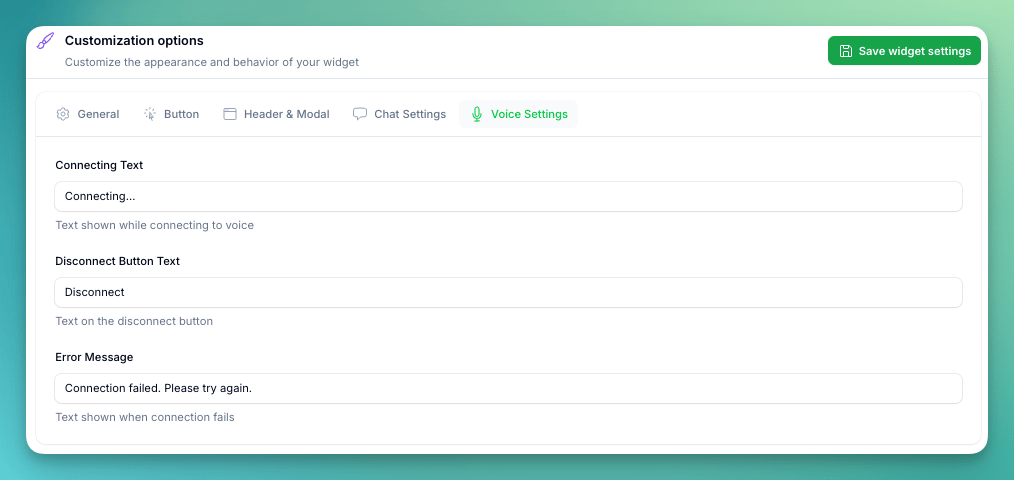
Voice Settings Tab
This tab is only visible when the widget mode includes voice (Voice Only or Voice & Chat).
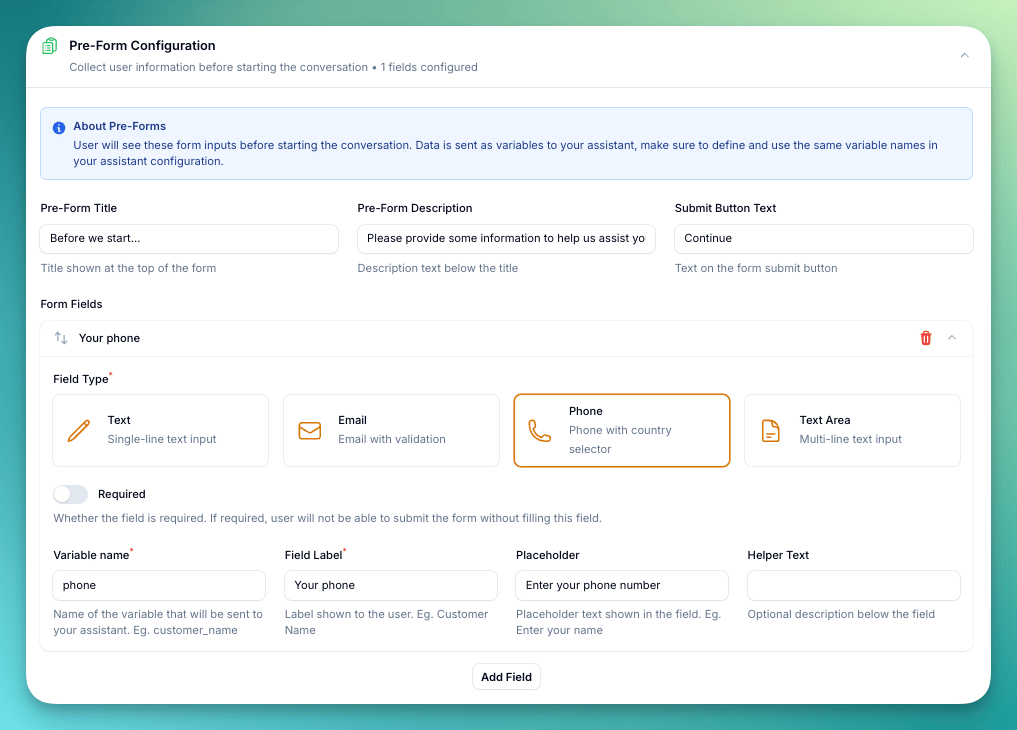
- Pre-form Title (default: “Before we start…”)
- Pre-form Description (default: “Please provide some information to help us assist you better”)
- Submit Button Text (default: “Continue”)
Form Fields:
Add custom fields to collect data:
- Variable Name: Internal variable name (maps to assistant variables). Only letters, numbers, dashes, and underscores allowed.
- Field Label: Display label shown to users
- Field Type: Text, Email, Phone, or Textarea
- Required: Make field mandatory
- Placeholder: Placeholder text shown in the field
- Helper Text: Optional description below the field
Variable Mapping:
Form field names automatically map to your assistant’s variables, making collected data available during conversations.
Example Form Fields:
Name: Full Name (required, text)
Email: Email Address (required, email)
Company: Company Name (optional, text)
Message: How can we help? (optional, textarea)
AI Response Settings
AI Enabled: When toggled on (default), the AI assistant automatically responds to incoming messages. Turn this off if you want to use the widget for manual-only conversations — messages are collected but the AI does not reply.
Conversation Webhook
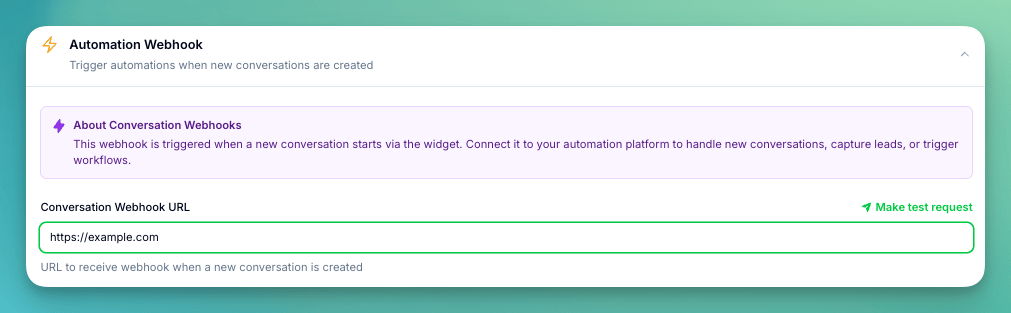
Webhook URL: Enter a URL to receive a webhook notification whenever a new conversation starts via the widget. Use this to trigger automation flows, log events to your CRM, or notify your team in real-time.
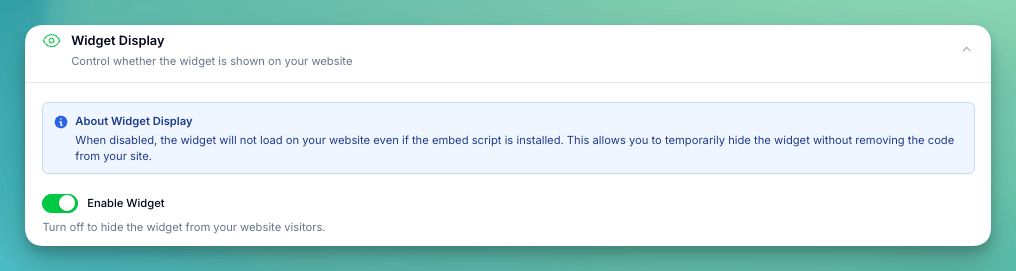
Enable Widget: Master toggle that controls whether the widget loads on your website. When disabled, the widget will not appear even if the embed script is installed on your site. Use this to temporarily hide the widget without removing code from your website.
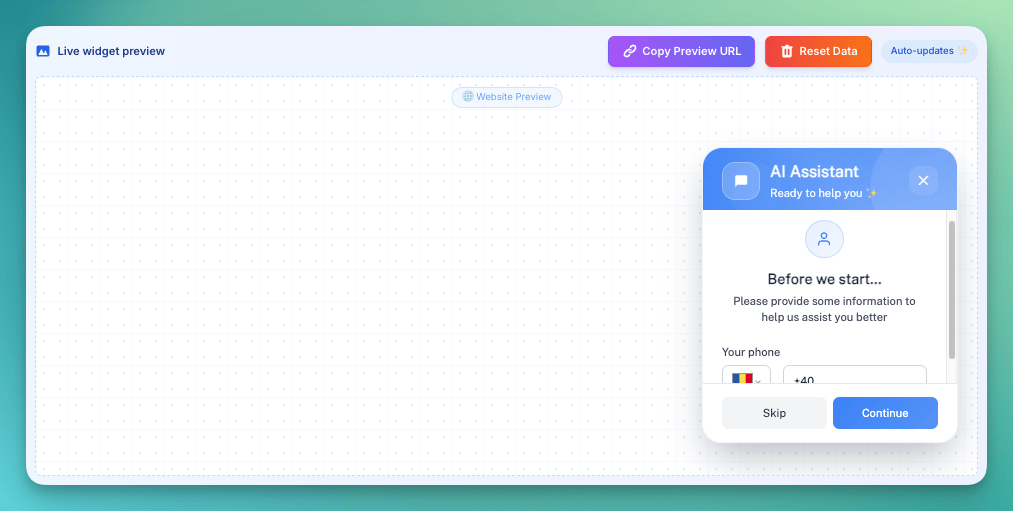
At the top of the configuration panel, a live preview shows exactly how your widget will look and behave on a website. The preview updates in real-time as you change any setting.
Copy Preview URL — copies the preview URL to your clipboard so you can open it in a separate browser tab or share it with your team for review.
Reset Data — clears all stored conversation history, form submissions, and preferences in the preview. Use this to simulate a first-time visitor experience after testing.
The preview is fully interactive — you can click the widget button, fill out the pre-chat form, and start a real conversation to test your configuration before deploying.
Embed Code
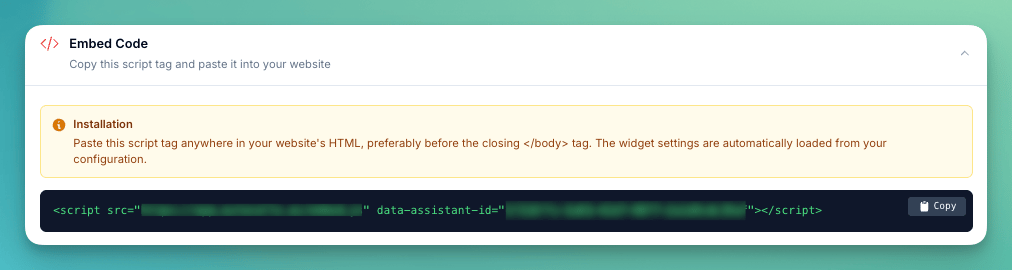
The embed code section provides a ready-to-copy script tag. Click Copy to copy it to your clipboard, then paste it into your website before the closing </body> tag:
<script src="https://app.autocalls.ai/embed.js"
        data-assistant-id="your-assistant-id">
</script>
Save your widget settings before copying the embed code. The script loads all configuration from the server, so any unsaved changes won’t appear on your website.
Installation
- Configure and save your widget settings
- Copy the embed code from the Embed Code section
- Paste the script tag before the closing
</body> tag on your website
- Visit your website and verify the widget appears in the configured position
- Test voice/chat functionality and pre-chat form (if configured)
First Visit
- Widget button appears in configured position
- Click opens modal/chat interface
- Pre-chat form displays (if configured)
- After form submission, conversation starts
Return Visits
- Previous conversation state may be restored
- Form data remembered (if visitor hasn’t cleared cookies)
- Seamless continuation of support experience
Conversation Tracking
All widget conversations appear in your Conversations page for review and analysis.
HTTPS (SSL certificate) is required for voice functionality. HTTP sites can only use chat mode due to browser security restrictions.
Troubleshooting
For setup and configuration issues, see Web Widget Troubleshooting.
Next Steps
- Test widget using the live preview
- Embed code on your website
- Monitor conversations in the Conversations page