> ## Documentation Index
> Fetch the complete documentation index at: https://docs.autocalls.ai/llms.txt
> Use this file to discover all available pages before exploring further.
# Twilio Integration
> A step by step guide to connect your Twilio phone numbers via Elastic SIP Trunking
This guide walks you through connecting your Twilio phone numbers using Elastic SIP Trunking. You'll create a SIP trunk in Twilio, assign your numbers to it, and import them into the platform.
**One-time setup:** You only need to create the Elastic SIP Trunk once (Step 1). For each additional phone number after that, you simply add it to your existing trunk (Step 2) and import it (Step 3).
## Step 1: Create Elastic SIP Trunking
1. Log in to your [Twilio Console](https://console.twilio.com)
2. In the **search bar** at the top of the dashboard, type **"Elastic SIP Trunking"** and click the result
Alternatively, click the **"..."** menu on the left sidebar for **All Products & Services**, then scroll down and click **Elastic SIP Trunking**
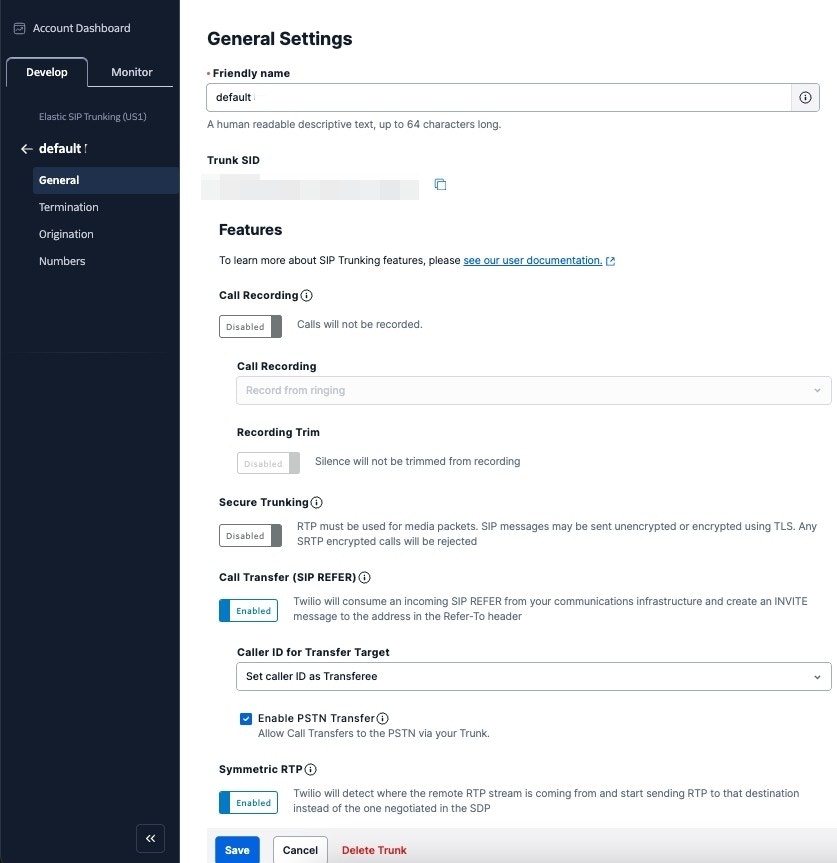
3. Click **Create new SIP Trunk** and give it a **Friendly name** (e.g., `autocalls`)
 ### Configure Termination (for outbound calls)
4. In the left sidebar, click **Termination**
5. In the **Termination SIP URI** field, enter only a unique name — for example, `yourcompany`
Twilio automatically appends `.pstn.twilio.com`, so your full URI will be: `yourcompany.pstn.twilio.com`
### Configure Termination (for outbound calls)
4. In the left sidebar, click **Termination**
5. In the **Termination SIP URI** field, enter only a unique name — for example, `yourcompany`
Twilio automatically appends `.pstn.twilio.com`, so your full URI will be: `yourcompany.pstn.twilio.com`
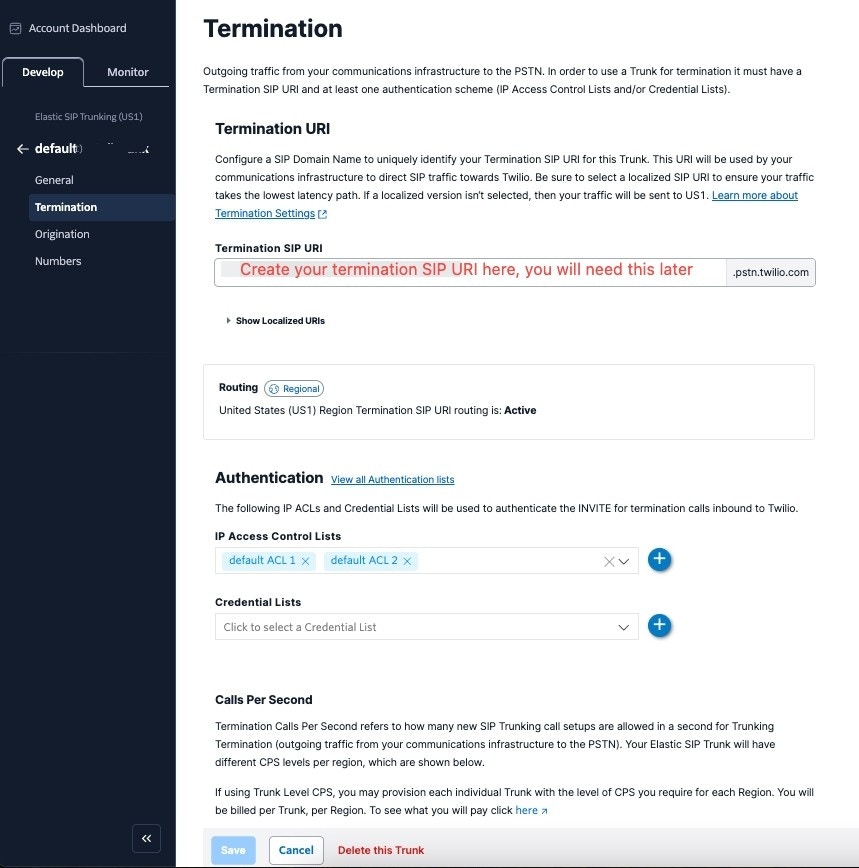 **Only enter the name part** (e.g., `yourcompany`). The `.pstn.twilio.com` suffix is pre-filled by Twilio. Do not paste a full URI or a localized URI (like `london-ix`) into the input field — this will create a malformed address that won't work. The general URI automatically routes traffic to the nearest region.
**Save this URI** — you will need the full Termination SIP URI (`yourcompany.pstn.twilio.com`) later when importing the number in Step 3.
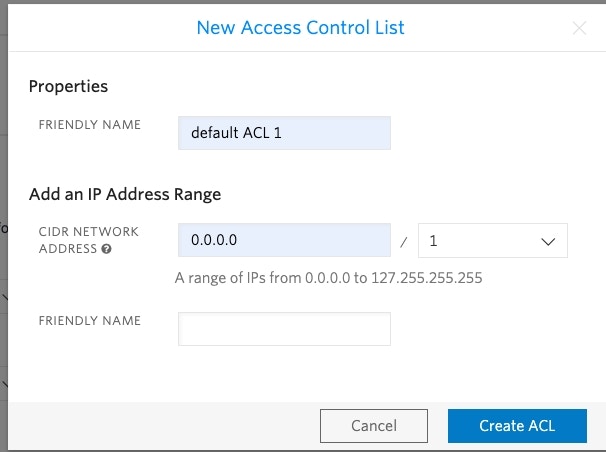
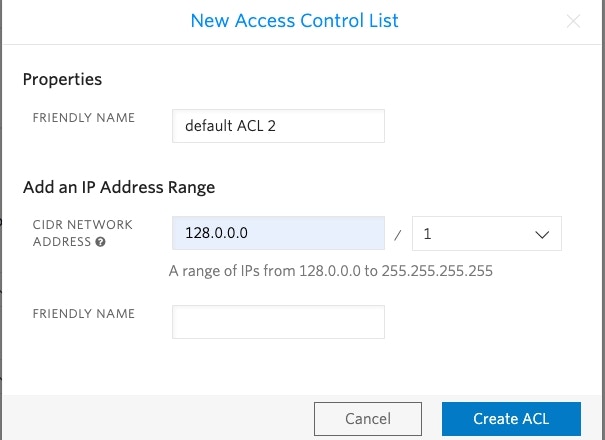
6. For your SIP trunk to accept outbound requests, you need to set up authentication. Scroll down to **Authentication** and configure IP Access Control Lists:
Currently the SIP server does not have a static IP, so you need to whitelist all the IP addresses in the range:
**Only enter the name part** (e.g., `yourcompany`). The `.pstn.twilio.com` suffix is pre-filled by Twilio. Do not paste a full URI or a localized URI (like `london-ix`) into the input field — this will create a malformed address that won't work. The general URI automatically routes traffic to the nearest region.
**Save this URI** — you will need the full Termination SIP URI (`yourcompany.pstn.twilio.com`) later when importing the number in Step 3.
6. For your SIP trunk to accept outbound requests, you need to set up authentication. Scroll down to **Authentication** and configure IP Access Control Lists:
Currently the SIP server does not have a static IP, so you need to whitelist all the IP addresses in the range:
 ### Configure Origination (for inbound calls)
7. In the left sidebar, click **Origination**
8. Click **Add new Origination URI** and enter the SIP server address:
```
sip:5wed79aeavr.sip.livekit.cloud
```
### Configure Origination (for inbound calls)
7. In the left sidebar, click **Origination**
8. Click **Add new Origination URI** and enter the SIP server address:
```
sip:5wed79aeavr.sip.livekit.cloud
```
 ## Step 2: Assign Numbers to Your SIP Trunk
Now assign your Twilio phone numbers to the trunk you just created.
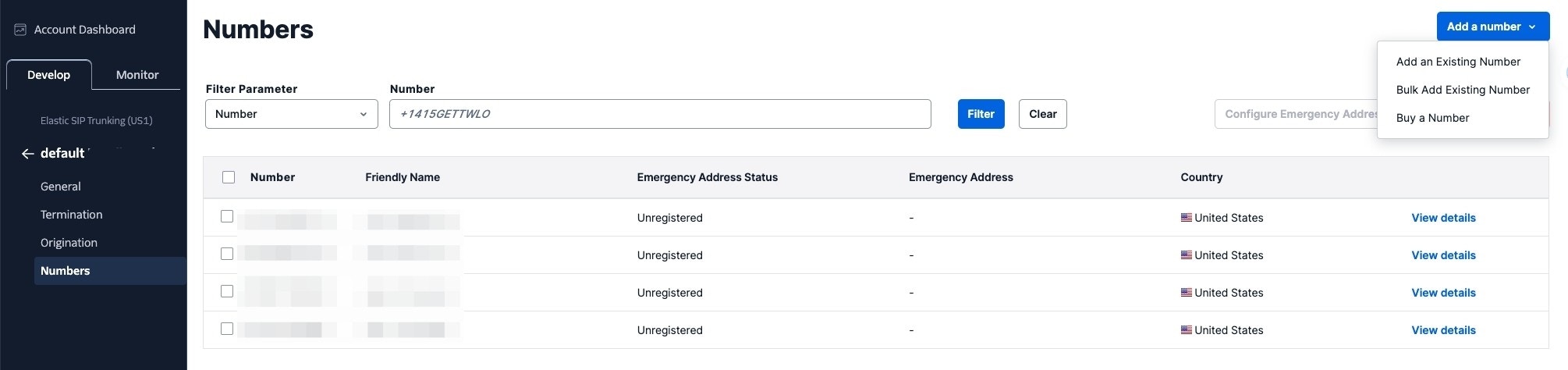
1. In your SIP trunk, click **Numbers** in the left sidebar
2. Click **Add a Number** and select the phone number(s) you want to use
## Step 2: Assign Numbers to Your SIP Trunk
Now assign your Twilio phone numbers to the trunk you just created.
1. In your SIP trunk, click **Numbers** in the left sidebar
2. Click **Add a Number** and select the phone number(s) you want to use
 For future numbers, you only need to repeat this step and Step 3 below. The trunk configuration from Step 1 is already done.
## Step 3: Import Numbers to the Platform
Now import the number so the platform knows how to route calls.
1. Go directly to the Phone Numbers page in your dashboard:
**[https://app.autocalls.ai/phone-numbers](https://app.autocalls.ai/phone-numbers)**
If it takes you to the login page, log in first — it will automatically redirect you to the Phone Numbers page.
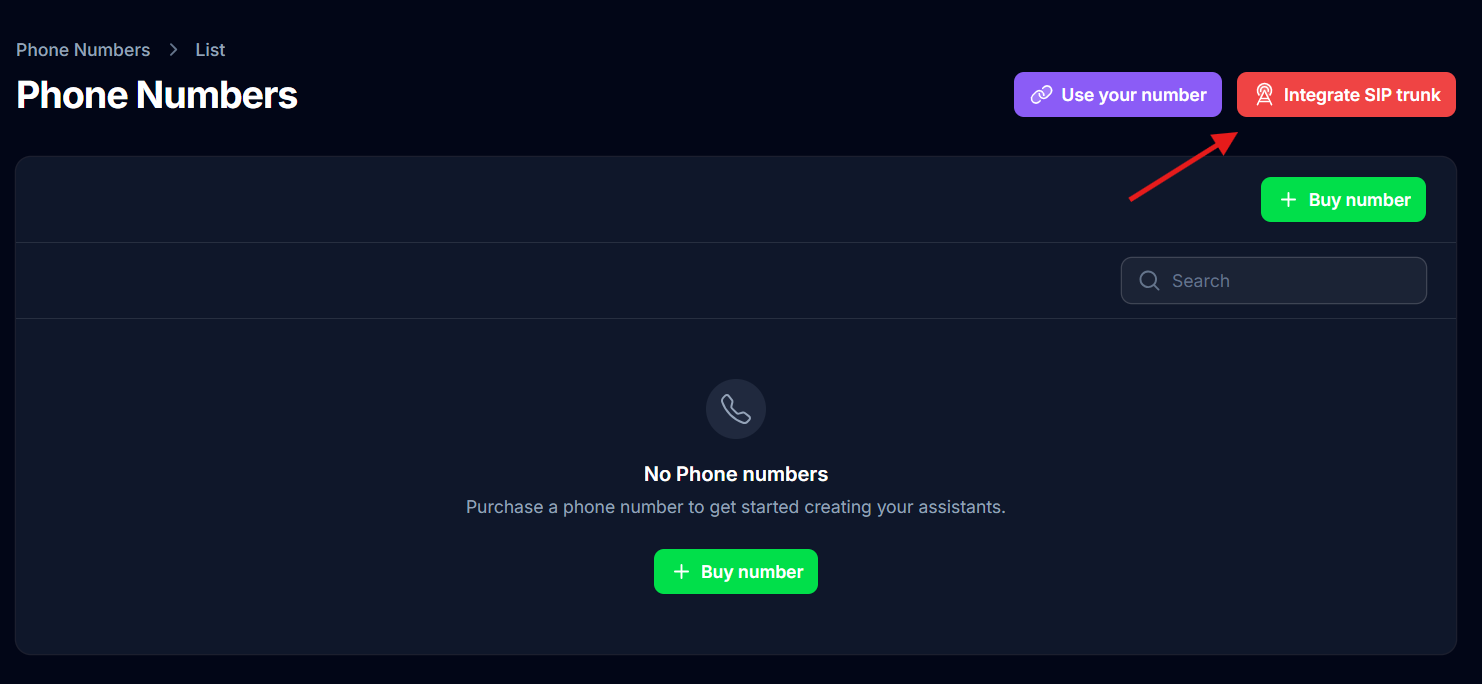
2. Click **"Integrate SIP trunk"** (top-right corner of the page)
For future numbers, you only need to repeat this step and Step 3 below. The trunk configuration from Step 1 is already done.
## Step 3: Import Numbers to the Platform
Now import the number so the platform knows how to route calls.
1. Go directly to the Phone Numbers page in your dashboard:
**[https://app.autocalls.ai/phone-numbers](https://app.autocalls.ai/phone-numbers)**
If it takes you to the login page, log in first — it will automatically redirect you to the Phone Numbers page.
2. Click **"Integrate SIP trunk"** (top-right corner of the page)
 3. Fill in your phone number and SIP credentials:
```
Phone number: e.g., +1 555 0123
Username: Your extension username
Password: Your extension password
```
3. Fill in your phone number and SIP credentials:
```
Phone number: e.g., +1 555 0123
Username: Your extension username
Password: Your extension password
```
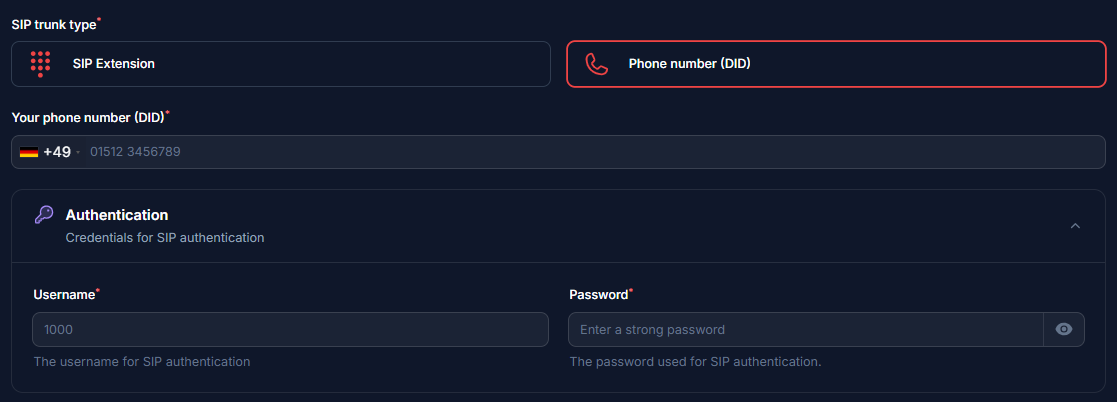 4. Enter the **Termination SIP URI** you created in Step 1:
```
Server address: e.g., yourcompany.pstn.twilio.com
```
4. Enter the **Termination SIP URI** you created in Step 1:
```
Server address: e.g., yourcompany.pstn.twilio.com
```
 5. Select the **Authorization type**. If you configured IP-based authentication in Step 1, select IP and add these addresses:
```
54.244.51.0
54.244.51.1
54.244.51.2
54.244.51.3
54.172.60.0
54.172.60.1
54.172.60.2
54.172.60.3
```
5. Select the **Authorization type**. If you configured IP-based authentication in Step 1, select IP and add these addresses:
```
54.244.51.0
54.244.51.1
54.244.51.2
54.244.51.3
54.172.60.0
54.172.60.1
54.172.60.2
54.172.60.3
```
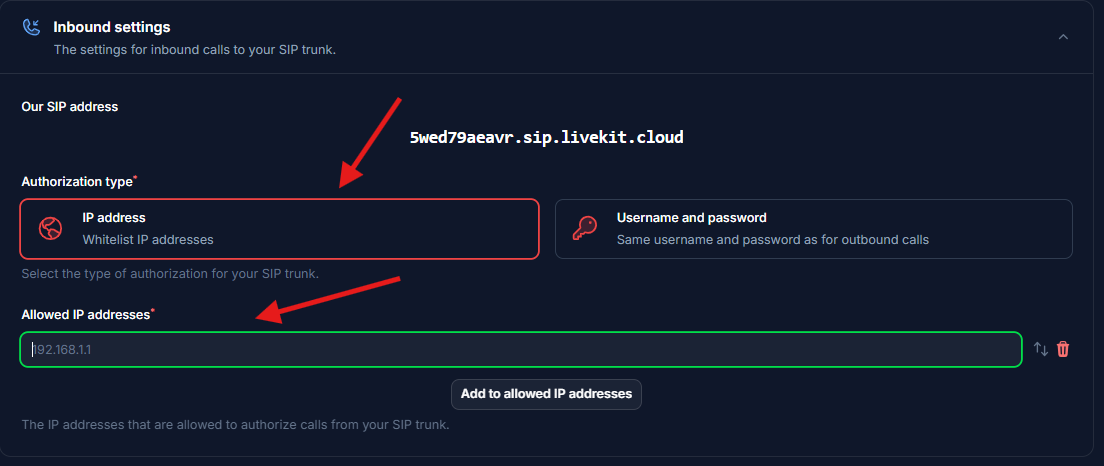 6. Select the **country** where your SIP trunk is located.
 ## Step 4: Verify Setup
After configuration:
1. Make a test call to your number
2. Check that the AI assistant answers
3. Use the test call feature to verify outbound calling
## Security Requirements
Your SIP credentials need to be secure:
* **Username**: Your extension number or provider-supplied username
* **Password must have**:
* 12 or more characters
* Numbers
* Upper and lowercase letters
* Special characters recommended
## Common Issues
No. You only create the Elastic SIP Trunk once (Step 1). For each new number, simply assign it to your existing trunk (Step 2) and import it into the platform (Step 3).
* **Check your Termination SIP URI** — make sure there are no spaces and it reads correctly (e.g., `yourcompany.pstn.twilio.com`). Verify you only entered the name part in Twilio and didn't accidentally include a localized URI or duplicate the `.pstn.twilio.com` suffix.
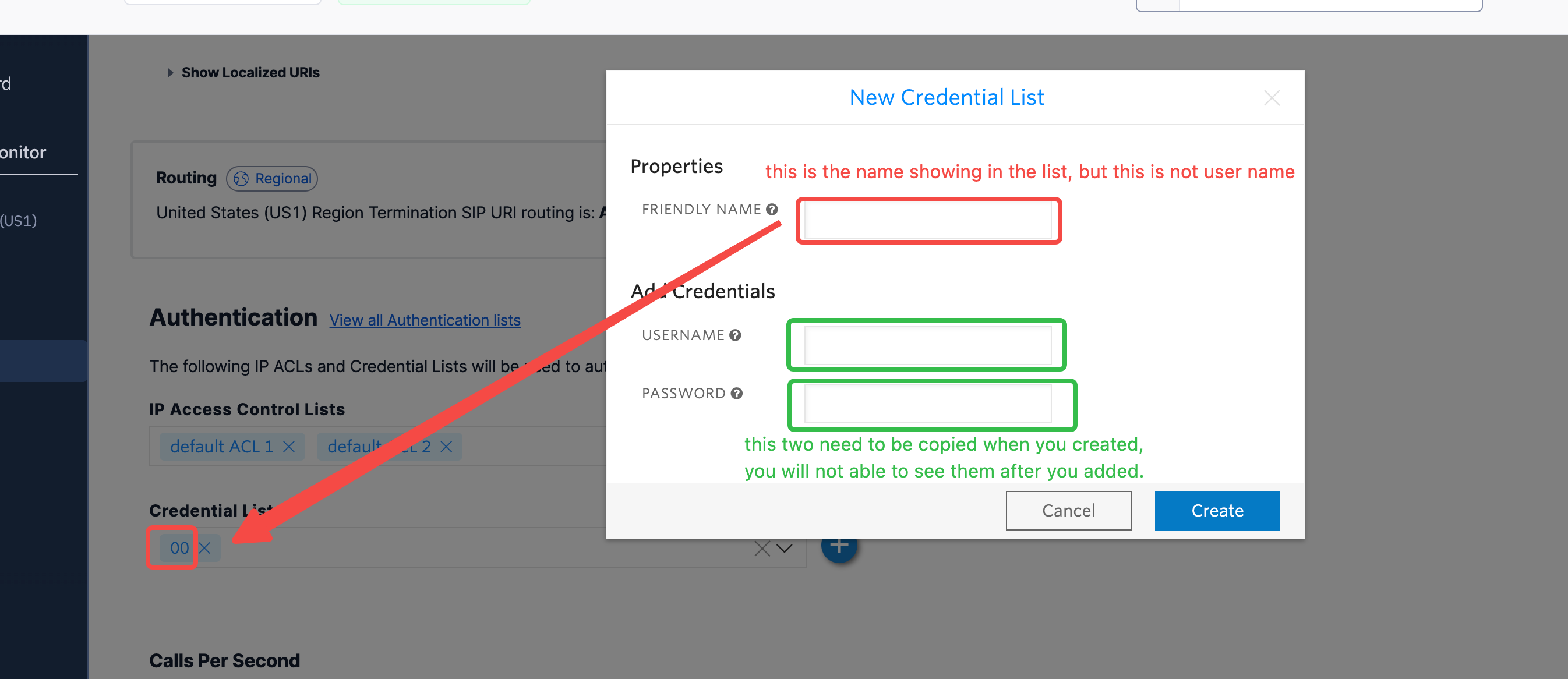
* **Check your username and credentials** — the username is **not** the same as the "Friendly name" in the credential list. Double-check you entered the actual username.
## Step 4: Verify Setup
After configuration:
1. Make a test call to your number
2. Check that the AI assistant answers
3. Use the test call feature to verify outbound calling
## Security Requirements
Your SIP credentials need to be secure:
* **Username**: Your extension number or provider-supplied username
* **Password must have**:
* 12 or more characters
* Numbers
* Upper and lowercase letters
* Special characters recommended
## Common Issues
No. You only create the Elastic SIP Trunk once (Step 1). For each new number, simply assign it to your existing trunk (Step 2) and import it into the platform (Step 3).
* **Check your Termination SIP URI** — make sure there are no spaces and it reads correctly (e.g., `yourcompany.pstn.twilio.com`). Verify you only entered the name part in Twilio and didn't accidentally include a localized URI or duplicate the `.pstn.twilio.com` suffix.
* **Check your username and credentials** — the username is **not** the same as the "Friendly name" in the credential list. Double-check you entered the actual username.
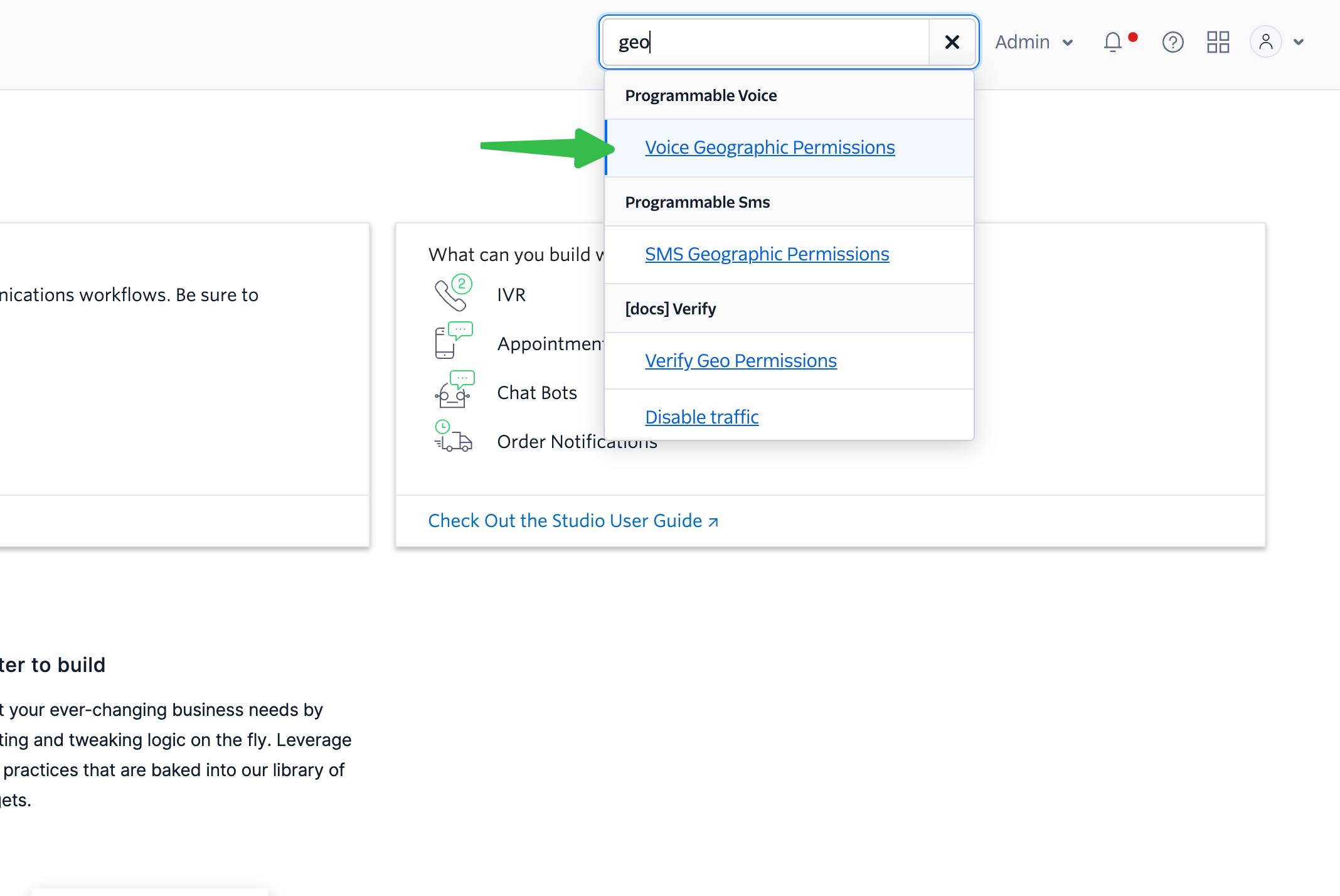
 1. In the Twilio Console search bar, search for **"geo"** to find **Voice Geographic Permissions**.
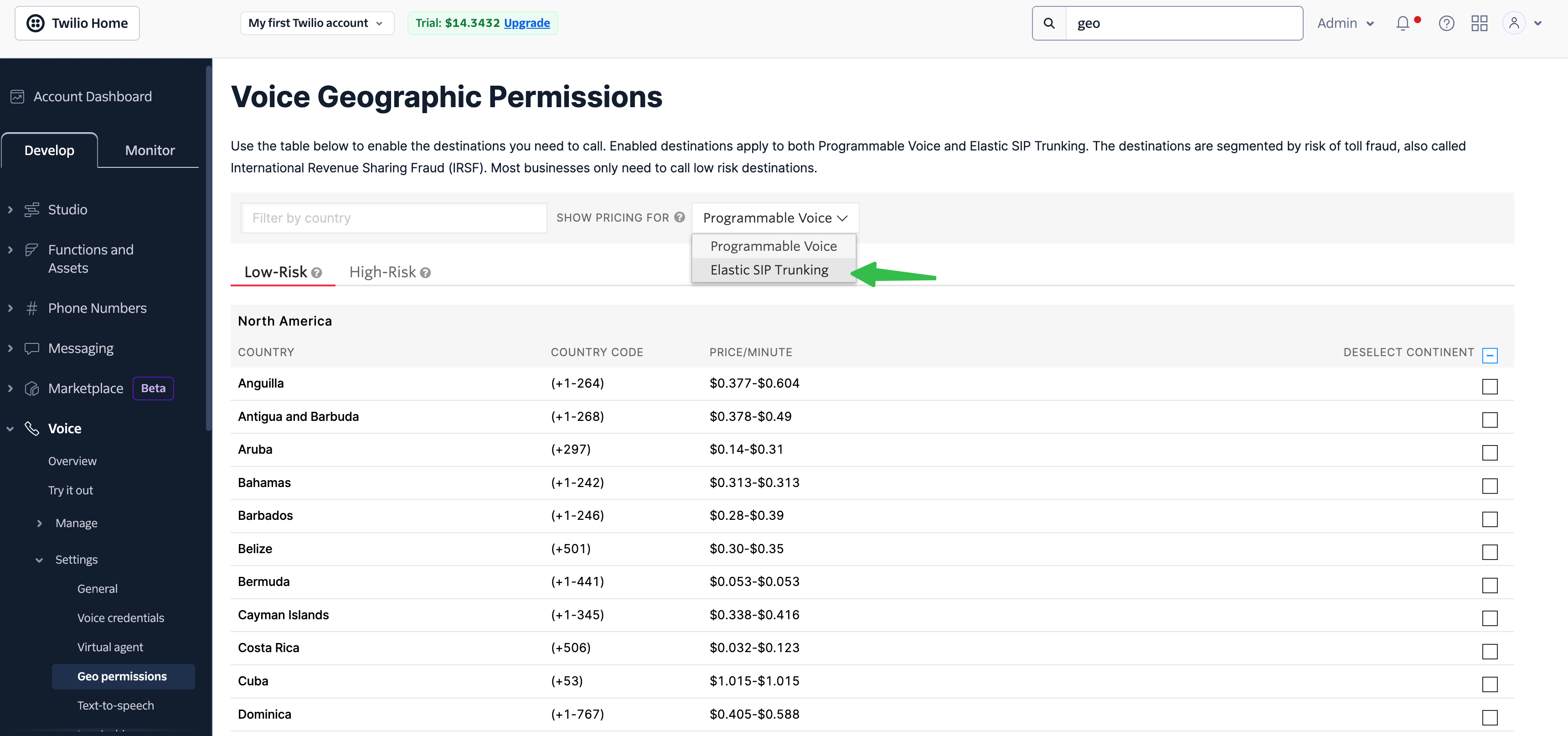
 2. Choose **"Elastic SIP Trunking"** in the selector, then select the countries you want to dial.
 ***
Need help setting up? Our support team specializes in helping customers
integrate their phone systems. We'll guide you through the entire process,
ensuring a smooth setup with your specific phone system configuration.
***
Need help setting up? Our support team specializes in helping customers
integrate their phone systems. We'll guide you through the entire process,
ensuring a smooth setup with your specific phone system configuration.