> ## Documentation Index
> Fetch the complete documentation index at: https://docs.autocalls.ai/llms.txt
> Use this file to discover all available pages before exploring further.
# Viewing & Managing Conversations
> How to view, filter, and manage your conversation history
Access and manage all your text-based conversations with your AI assistants.
## Accessing Conversations
1. Navigate to **Conversations (chat)** in your sidebar
2. View the list of all conversations
3. The badge shows your total conversation count
If you don't have any conversations yet, you'll see an empty state. Conversations will appear once customers interact with your [web widget](/ai-assistants/web-widget), [WhatsApp Business](/whatsapp/overview), or when you use [test chat](/ai-assistants/test-chat).
 ## Conversations Table
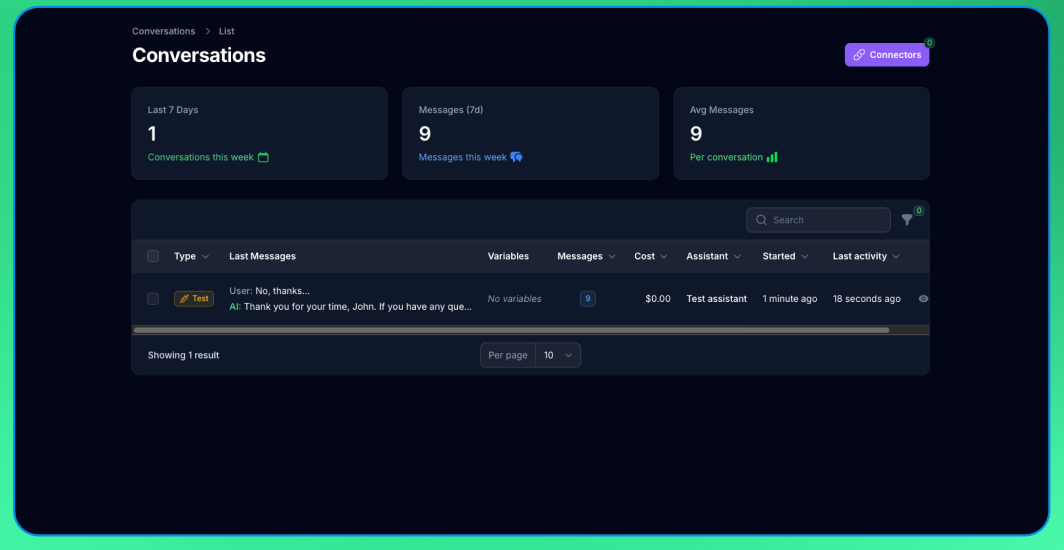
The conversations table displays:
**Type:** Badge showing "Test", "Web widget", or "WhatsApp"
**Last Messages:** Preview of recent messages in the conversation
**Variables:** Variables collected during the conversation
**Message Count:** Number of messages exchanged
**Cost:** Total cost of the conversation
**Assistant:** Which assistant handled the conversation
**Started:** When the conversation started
**Last Activity:** Last message timestamp
## Filtering Conversations
Use filters to find specific conversations:
### By Type
Filter by conversation source:
* **Test:** Only test chat sessions
* **Web widget:** Only website widget conversations
* **WhatsApp:** Only WhatsApp Business conversations
### By Assistant
Select specific assistant to view only their conversations.
### By Date Range
Use the date range picker to filter conversations by creation date:
* Last 7 days
* Last 30 days
* Last 90 days
* Custom date range
## Viewing Conversation Details
Click on any conversation to view complete details:
## Conversations Table
The conversations table displays:
**Type:** Badge showing "Test", "Web widget", or "WhatsApp"
**Last Messages:** Preview of recent messages in the conversation
**Variables:** Variables collected during the conversation
**Message Count:** Number of messages exchanged
**Cost:** Total cost of the conversation
**Assistant:** Which assistant handled the conversation
**Started:** When the conversation started
**Last Activity:** Last message timestamp
## Filtering Conversations
Use filters to find specific conversations:
### By Type
Filter by conversation source:
* **Test:** Only test chat sessions
* **Web widget:** Only website widget conversations
* **WhatsApp:** Only WhatsApp Business conversations
### By Assistant
Select specific assistant to view only their conversations.
### By Date Range
Use the date range picker to filter conversations by creation date:
* Last 7 days
* Last 30 days
* Last 90 days
* Custom date range
## Viewing Conversation Details
Click on any conversation to view complete details:
 ### Info Section
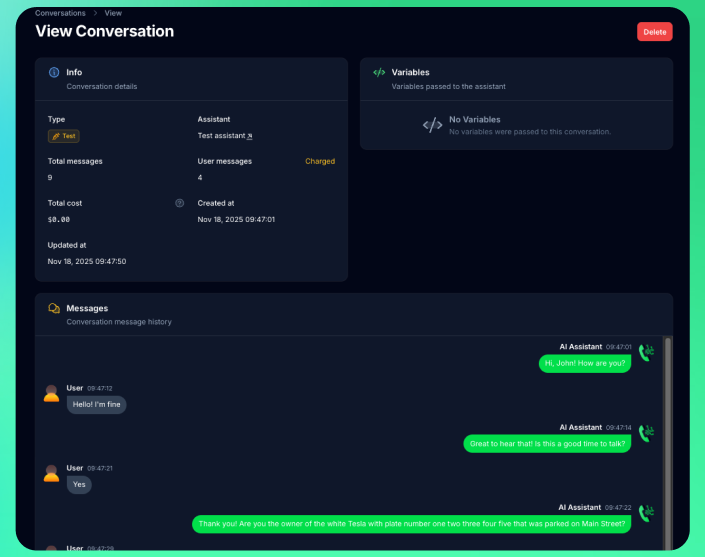
View conversation details and metrics:
* **Type:** Badge showing source (Test, Web widget, or WhatsApp)
* **Assistant:** Which assistant handled the conversation
* **Customer Identifier:** Phone number (for WhatsApp) or session ID
* **Total Messages:** All messages in conversation
* **User Messages:** Messages that incurred charges
* **Total Cost:** Cost of the conversation
* **Created At:** When conversation started
* **Updated At:** Last activity timestamp
For WhatsApp conversations, you'll also see the customer's phone number and messaging window status (whether free-form replies are available or if templates are required).
### Messages Section
Complete conversation timeline showing:
* User messages and assistant responses
* Message content and timestamps
* Chronological conversation flow
### Variables Section
Variables collected during the conversation:
* Pre-chat form data
* Variable names and values
## Managing Conversations
### Deleting Conversations
Remove unwanted conversation records:
1. Select conversation(s) from the table
2. Click the delete action
3. Confirm deletion
Deleting conversations is permanent and cannot be undone. The conversation history and all associated data will be permanently removed.
### Bulk Actions
Manage multiple conversations at once:
* Select multiple conversations using checkboxes
* Apply bulk delete to clean up test conversations
## Sorting
Click column headers to sort conversations:
* Sort by creation date (newest/oldest first)
* Sort by cost (highest/lowest)
* Sort by message count
* Sort by last update
## Best Practices
* Review conversations regularly to improve assistant responses
* Delete test conversations to keep data clean
* Monitor conversation costs and token usage
* Use filters to find specific conversation types
## Next Steps
* Set up [web widget](/ai-assistants/web-widget) to collect more conversations
* Connect [WhatsApp Business](/whatsapp/overview) for messaging conversations
* Use [test chat](/ai-assistants/test-chat) to test improvements
* Review conversation data regularly to improve assistant performance
### Info Section
View conversation details and metrics:
* **Type:** Badge showing source (Test, Web widget, or WhatsApp)
* **Assistant:** Which assistant handled the conversation
* **Customer Identifier:** Phone number (for WhatsApp) or session ID
* **Total Messages:** All messages in conversation
* **User Messages:** Messages that incurred charges
* **Total Cost:** Cost of the conversation
* **Created At:** When conversation started
* **Updated At:** Last activity timestamp
For WhatsApp conversations, you'll also see the customer's phone number and messaging window status (whether free-form replies are available or if templates are required).
### Messages Section
Complete conversation timeline showing:
* User messages and assistant responses
* Message content and timestamps
* Chronological conversation flow
### Variables Section
Variables collected during the conversation:
* Pre-chat form data
* Variable names and values
## Managing Conversations
### Deleting Conversations
Remove unwanted conversation records:
1. Select conversation(s) from the table
2. Click the delete action
3. Confirm deletion
Deleting conversations is permanent and cannot be undone. The conversation history and all associated data will be permanently removed.
### Bulk Actions
Manage multiple conversations at once:
* Select multiple conversations using checkboxes
* Apply bulk delete to clean up test conversations
## Sorting
Click column headers to sort conversations:
* Sort by creation date (newest/oldest first)
* Sort by cost (highest/lowest)
* Sort by message count
* Sort by last update
## Best Practices
* Review conversations regularly to improve assistant responses
* Delete test conversations to keep data clean
* Monitor conversation costs and token usage
* Use filters to find specific conversation types
## Next Steps
* Set up [web widget](/ai-assistants/web-widget) to collect more conversations
* Connect [WhatsApp Business](/whatsapp/overview) for messaging conversations
* Use [test chat](/ai-assistants/test-chat) to test improvements
* Review conversation data regularly to improve assistant performance