> ## Documentation Index
> Fetch the complete documentation index at: https://docs.autocalls.ai/llms.txt
> Use this file to discover all available pages before exploring further.
# Custom Mid-Call Tools
> Learn how to create and configure custom API integrations that your AI assistant can use during calls
Custom Mid-Call Tools let your AI assistant interact with external systems
during calls. Whether checking inventory, verifying customer data, or fetching
real-time information, these tools make your AI more powerful and connected.
## Overview
Custom Mid-Call Tools enable your AI assistant to:
* Make real-time API calls during conversations
* Fetch or submit data to your systems
* Make informed decisions based on live data
* Provide accurate, up-to-date information to callers
- No coding required - just configure the API endpoint and parameters - AI
automatically knows when and how to use the tools - Real-time data access
during calls - Seamless integration with your existing systems
Mid-call tools and [MCP servers](/ai-assistants/mcp-servers) both live under the
**Mid call tools / MCP** page in the sidebar. Use a mid-call tool for a single
HTTP endpoint you define by hand, and an MCP server to connect a remote server
that exposes many tools at once.
## Tool types
When you create a tool you choose one of two types:
Call **your own API** directly. You set the URL, method, headers, parameters
and (optionally) a static body. Best when you already have an endpoint.
Autocalls **creates a linked flow for you** in the
[Automation Platform](/automation-platform/introduction). The tool's endpoint
is generated and locked automatically — you just build the logic in the flow
and end with a **Return Response** step. Best for no-code, multi-step logic.
## Setting Up Your Tool
### 1. Basic Configuration
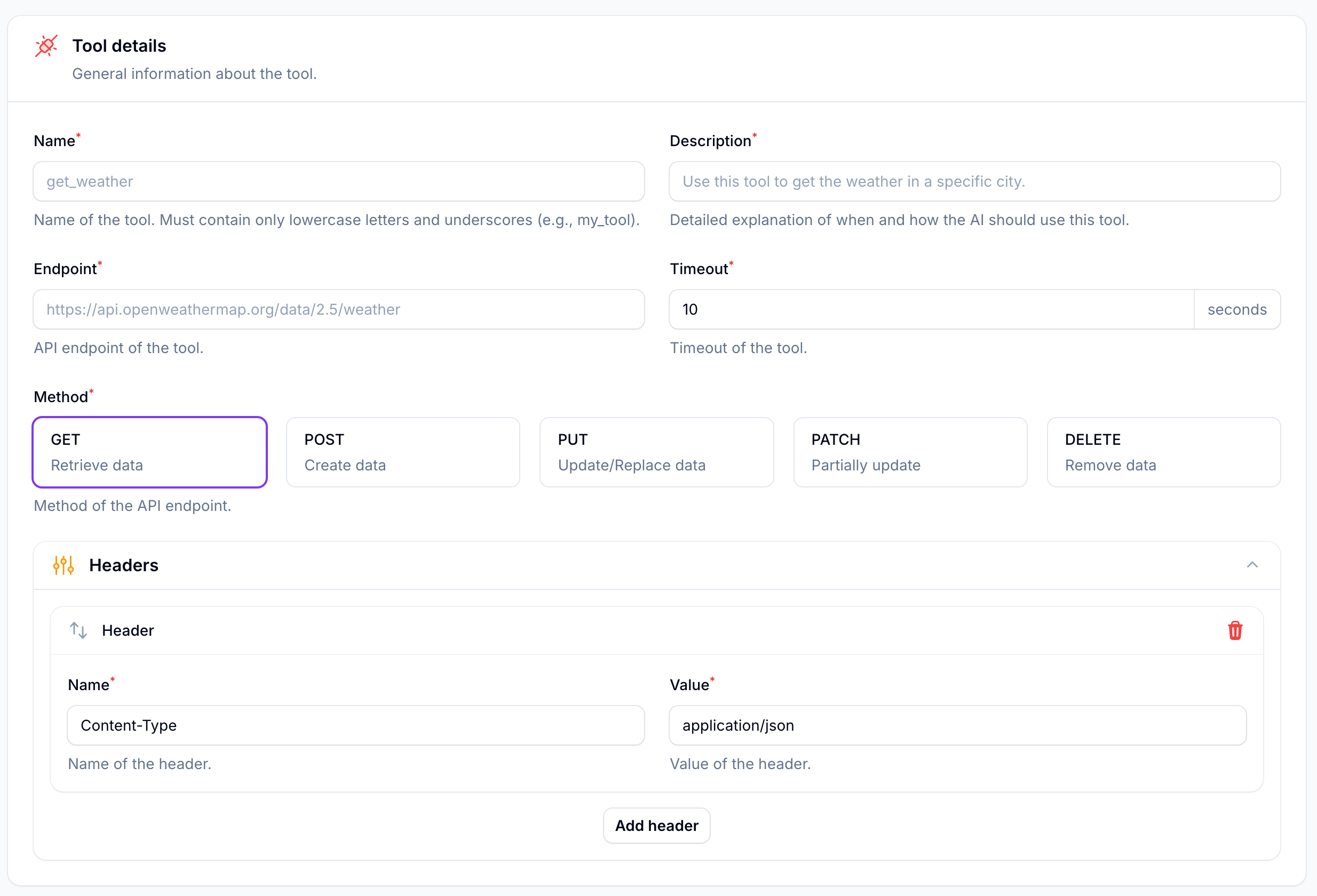 Navigate to **Mid call tools** and click **Create Mid-Call Tool**
Fill in the essential details:
* **Name**: Letters, numbers and underscores, starting with a letter or underscore (up to **64 characters**, e.g., `check_order_status`)
* **Description**: Explain when and how the AI should use this tool
* **Endpoint**: Your API URL (e.g., `https://api.yourcompany.com/orders`)
* **Timeout**: How long to wait for responses (1–30 seconds)
* **Method**: Choose GET, POST, PUT, PATCH, or DELETE
* **Body format**: For write methods (POST/PUT/PATCH), send the body as **JSON** (default) or **form-encoded** (`application/x-www-form-urlencoded`)
Common headers you might need:
```yaml theme={null}
Content-Type: application/json
Authorization: Bearer your_token
```
### 2. Variable Configuration
Navigate to **Mid call tools** and click **Create Mid-Call Tool**
Fill in the essential details:
* **Name**: Letters, numbers and underscores, starting with a letter or underscore (up to **64 characters**, e.g., `check_order_status`)
* **Description**: Explain when and how the AI should use this tool
* **Endpoint**: Your API URL (e.g., `https://api.yourcompany.com/orders`)
* **Timeout**: How long to wait for responses (1–30 seconds)
* **Method**: Choose GET, POST, PUT, PATCH, or DELETE
* **Body format**: For write methods (POST/PUT/PATCH), send the body as **JSON** (default) or **form-encoded** (`application/x-www-form-urlencoded`)
Common headers you might need:
```yaml theme={null}
Content-Type: application/json
Authorization: Bearer your_token
```
### 2. Variable Configuration
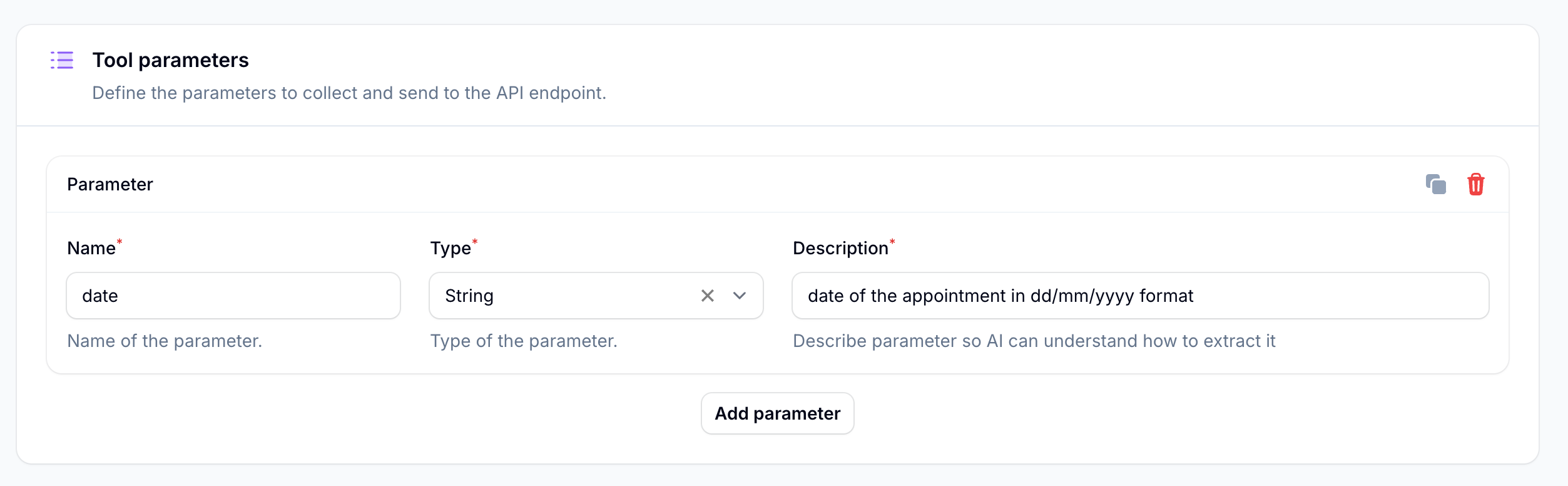 These are the pieces of information your AI will collect during the call:
```yaml theme={null}
Name: order_number
Type: string
Description: "10-digit order number from the customer"
```
Add format requirements in the description:
```yaml theme={null}
"Date in dd/mm/yyyy format"
"Phone number without spaces"
"Email address for confirmation"
```
## Understanding Parameter Types
Text values like names, addresses, or reference numbers
```yaml theme={null}
Type: string
Examples: "John Doe", "123 Main St"
```
Whole numbers like quantities or IDs
```yaml theme={null}
Type: number
Examples: 42, 1500
```
Decimal numbers like prices or amounts
```yaml theme={null}
Type: float
Examples: 19.99, 4.5
```
True/false values for yes/no situations
```yaml theme={null}
Type: boolean
Examples: true, false
```
Each parameter can be marked **required** or optional. Optional parameters are
only sent when the AI actually collected a value, so your endpoint won't receive
empty fields. Add format hints in the description (e.g. `"Date in dd/mm/yyyy"`,
`"Phone without spaces"`).
## Static fields
Static fields are fixed key/value pairs that are **always sent** with every
request — the AI never changes them. Use them for constants like a tenant id, a
channel, or a source tag.
```yaml theme={null}
source: autocalls
tenant: acme
channel: sms
```
Static field **values** also support [system variables](#system-variables--dynamic-values)
(e.g. set `caller` to `{{customer_phone}}`).
## System variables & dynamic values
There are two ways to inject dynamic data into your tool:
Wrapped in **single braces** `{param}`. Replaced with the value the AI
collected during the conversation. Used in the URL path/query.
```yaml theme={null}
https://api.example.com/orders/{order_id}
```
Wrapped in **double braces** `{{variable}}`. Filled in automatically by the
platform at call time. Usable in the **URL**, **header values**, and
**static field values**.
```yaml theme={null}
Authorization: Bearer {{crm_key}}
```
These system variables are injected automatically — no setup needed:
| Variable | Value |
| --------------------- | -------------------------------------------------------------------------------------------- |
| `{{customer_phone}}` | The other party's phone number (caller for inbound, callee for outbound). Empty on web/chat. |
| `{{assistant_phone}}` | The assistant's own phone number, if it has one. |
| `{{assistant_id}}` | The assistant's unique ID. |
| `{{assistant_name}}` | The assistant's name. |
| `{{current_date}}` | Current date in the assistant's timezone (e.g. `2026-06-15`). |
| `{{current_time}}` | Current time in the assistant's timezone (e.g. `14:30`). |
Any custom **account variables** you define are also available as `{{name}}` and
can be used the same way.
## Dynamic Endpoints
When using variables in your endpoint URL, make sure to enclose them in curly
braces and use the exact parameter name.
You can make your endpoints dynamic using variables:
```yaml theme={null}
Basic URL:
https://api.example.com/orders/status
With Variables:
https://api.example.com/orders/{order_id}/status
```
The AI will automatically replace `{order_id}` with the actual value collected during the conversation.
## Testing Made Easy
Click **Test tool** to fire a real request with realistic sample data:
* **String** parameters: `"Sample data"`
* **Number** parameters: `42`
* **Float** parameters: `19.99`
* **Boolean** parameters: `true`
* **System variables** like `{{customer_phone}}` are filled with realistic placeholders (e.g. `+1234567890`, the assistant name/id)
You'll see the request data, response code and body, helping you verify everything
works before going live.
Automation Platform tools don't have a **Test tool** button — you test them by
running the linked flow inside the Automation Platform.
## Automation Platform tools
Need more complex logic? Create an **Automation Platform** tool and Autocalls
builds and links the flow for you — no manual webhook setup required.
When you set the tool type to **Automation Platform**, Autocalls automatically
creates a connected flow in the [Automation Platform](/automation-platform/introduction)
and wires the tool's endpoint to it. The endpoint and method are **generated and
locked**, so they can't accidentally be changed.
Choose the **Automation Platform** type, give the tool a name, description and
parameters. On save, the linked flow is created automatically.
On the tool's edit page, the connection card shows the flow status
(**Live**/**Disabled**) and an **Open flow in Automation Platform** button.
The flow starts from a webhook trigger and ends with a **Return Response**
step.
Add steps between the trigger and the response — API calls, CRM updates,
branching, data transforms — then keep a **Return Response** step so the AI
receives a result.
If you change the tool's parameters or static fields, use **Resync sample
data** so the flow's trigger sample matches. If the initial flow creation ever
fails, a **Retry flow creation** button appears on the edit page.
This lets you:
* Transform data before/after API calls
* Make multiple API calls in sequence
* Apply complex business logic
* Handle errors gracefully
Prefer to wire it up yourself? You can still use a plain **HTTP request** tool
pointed at an existing Automation Platform webhook URL with `/sync` appended
(e.g. `https://automate.autocalls.ai/api/v1/webhooks/abc123/sync`).
## Real-World Examples
```yaml theme={null}
Name: check_order
Endpoint: https://api.yourshop.com/orders/{order_number}
Parameters:
- Name: order_number
Type: string
Description: "Order reference (format: ORD-XXXXX)"
```
The AI will:
1. Ask for the order number
2. Fetch the status
3. Explain delivery dates and status to the customer
```yaml theme={null}
Name: check_slots
Endpoint: https://api.calendar.com/availability
Parameters:
- Name: service
Type: string
Description: "Service type (haircut, massage, consultation)"
- Name: date
Type: string
Description: "Preferred date (dd/mm/yyyy)"
```
The AI will:
1. Ask about the desired service
2. Get preferred date
3. Show available time slots
```yaml theme={null}
Name: verify_customer
Endpoint: https://api.crm.com/verify
Parameters:
- Name: phone
Type: string
Description: "10-digit phone number"
- Name: email
Type: string
Description: "Email address for verification"
```
The AI will:
1. Collect contact details
2. Verify against your CRM
3. Proceed based on verification status
## Configuring Your AI
The AI needs clear instructions in its system prompt to effectively use your
custom tools.
Example prompt section:
```yaml theme={null}
When to use check_order tool:
1. Customer asks about order status
2. Mentions tracking or delivery
3. Wants to know where their package is
How to use it:
1. Ask for order number if not provided
2. Verify format (ORD-XXXXX)
3. Use tool to fetch status
4. Explain results in simple terms
```
Test your tools with various conversation flows to ensure the AI handles all
scenarios smoothly. Start with simple test calls before going live.
These are the pieces of information your AI will collect during the call:
```yaml theme={null}
Name: order_number
Type: string
Description: "10-digit order number from the customer"
```
Add format requirements in the description:
```yaml theme={null}
"Date in dd/mm/yyyy format"
"Phone number without spaces"
"Email address for confirmation"
```
## Understanding Parameter Types
Text values like names, addresses, or reference numbers
```yaml theme={null}
Type: string
Examples: "John Doe", "123 Main St"
```
Whole numbers like quantities or IDs
```yaml theme={null}
Type: number
Examples: 42, 1500
```
Decimal numbers like prices or amounts
```yaml theme={null}
Type: float
Examples: 19.99, 4.5
```
True/false values for yes/no situations
```yaml theme={null}
Type: boolean
Examples: true, false
```
Each parameter can be marked **required** or optional. Optional parameters are
only sent when the AI actually collected a value, so your endpoint won't receive
empty fields. Add format hints in the description (e.g. `"Date in dd/mm/yyyy"`,
`"Phone without spaces"`).
## Static fields
Static fields are fixed key/value pairs that are **always sent** with every
request — the AI never changes them. Use them for constants like a tenant id, a
channel, or a source tag.
```yaml theme={null}
source: autocalls
tenant: acme
channel: sms
```
Static field **values** also support [system variables](#system-variables--dynamic-values)
(e.g. set `caller` to `{{customer_phone}}`).
## System variables & dynamic values
There are two ways to inject dynamic data into your tool:
Wrapped in **single braces** `{param}`. Replaced with the value the AI
collected during the conversation. Used in the URL path/query.
```yaml theme={null}
https://api.example.com/orders/{order_id}
```
Wrapped in **double braces** `{{variable}}`. Filled in automatically by the
platform at call time. Usable in the **URL**, **header values**, and
**static field values**.
```yaml theme={null}
Authorization: Bearer {{crm_key}}
```
These system variables are injected automatically — no setup needed:
| Variable | Value |
| --------------------- | -------------------------------------------------------------------------------------------- |
| `{{customer_phone}}` | The other party's phone number (caller for inbound, callee for outbound). Empty on web/chat. |
| `{{assistant_phone}}` | The assistant's own phone number, if it has one. |
| `{{assistant_id}}` | The assistant's unique ID. |
| `{{assistant_name}}` | The assistant's name. |
| `{{current_date}}` | Current date in the assistant's timezone (e.g. `2026-06-15`). |
| `{{current_time}}` | Current time in the assistant's timezone (e.g. `14:30`). |
Any custom **account variables** you define are also available as `{{name}}` and
can be used the same way.
## Dynamic Endpoints
When using variables in your endpoint URL, make sure to enclose them in curly
braces and use the exact parameter name.
You can make your endpoints dynamic using variables:
```yaml theme={null}
Basic URL:
https://api.example.com/orders/status
With Variables:
https://api.example.com/orders/{order_id}/status
```
The AI will automatically replace `{order_id}` with the actual value collected during the conversation.
## Testing Made Easy
Click **Test tool** to fire a real request with realistic sample data:
* **String** parameters: `"Sample data"`
* **Number** parameters: `42`
* **Float** parameters: `19.99`
* **Boolean** parameters: `true`
* **System variables** like `{{customer_phone}}` are filled with realistic placeholders (e.g. `+1234567890`, the assistant name/id)
You'll see the request data, response code and body, helping you verify everything
works before going live.
Automation Platform tools don't have a **Test tool** button — you test them by
running the linked flow inside the Automation Platform.
## Automation Platform tools
Need more complex logic? Create an **Automation Platform** tool and Autocalls
builds and links the flow for you — no manual webhook setup required.
When you set the tool type to **Automation Platform**, Autocalls automatically
creates a connected flow in the [Automation Platform](/automation-platform/introduction)
and wires the tool's endpoint to it. The endpoint and method are **generated and
locked**, so they can't accidentally be changed.
Choose the **Automation Platform** type, give the tool a name, description and
parameters. On save, the linked flow is created automatically.
On the tool's edit page, the connection card shows the flow status
(**Live**/**Disabled**) and an **Open flow in Automation Platform** button.
The flow starts from a webhook trigger and ends with a **Return Response**
step.
Add steps between the trigger and the response — API calls, CRM updates,
branching, data transforms — then keep a **Return Response** step so the AI
receives a result.
If you change the tool's parameters or static fields, use **Resync sample
data** so the flow's trigger sample matches. If the initial flow creation ever
fails, a **Retry flow creation** button appears on the edit page.
This lets you:
* Transform data before/after API calls
* Make multiple API calls in sequence
* Apply complex business logic
* Handle errors gracefully
Prefer to wire it up yourself? You can still use a plain **HTTP request** tool
pointed at an existing Automation Platform webhook URL with `/sync` appended
(e.g. `https://automate.autocalls.ai/api/v1/webhooks/abc123/sync`).
## Real-World Examples
```yaml theme={null}
Name: check_order
Endpoint: https://api.yourshop.com/orders/{order_number}
Parameters:
- Name: order_number
Type: string
Description: "Order reference (format: ORD-XXXXX)"
```
The AI will:
1. Ask for the order number
2. Fetch the status
3. Explain delivery dates and status to the customer
```yaml theme={null}
Name: check_slots
Endpoint: https://api.calendar.com/availability
Parameters:
- Name: service
Type: string
Description: "Service type (haircut, massage, consultation)"
- Name: date
Type: string
Description: "Preferred date (dd/mm/yyyy)"
```
The AI will:
1. Ask about the desired service
2. Get preferred date
3. Show available time slots
```yaml theme={null}
Name: verify_customer
Endpoint: https://api.crm.com/verify
Parameters:
- Name: phone
Type: string
Description: "10-digit phone number"
- Name: email
Type: string
Description: "Email address for verification"
```
The AI will:
1. Collect contact details
2. Verify against your CRM
3. Proceed based on verification status
## Configuring Your AI
The AI needs clear instructions in its system prompt to effectively use your
custom tools.
Example prompt section:
```yaml theme={null}
When to use check_order tool:
1. Customer asks about order status
2. Mentions tracking or delivery
3. Wants to know where their package is
How to use it:
1. Ask for order number if not provided
2. Verify format (ORD-XXXXX)
3. Use tool to fetch status
4. Explain results in simple terms
```
Test your tools with various conversation flows to ensure the AI handles all
scenarios smoothly. Start with simple test calls before going live.